Here you can find the steps to complete the setup of your new or existing UltraQ or DynaQ using your BBQ Guru mobile app version 6.7.17 and up.
Please follow the steps below to set up your UltraQ with the BBQ Guru App
- Open up the BBQ Guru app.
- Log in if not already logged in'
- Plug up your UltraQ/DynaQ to power
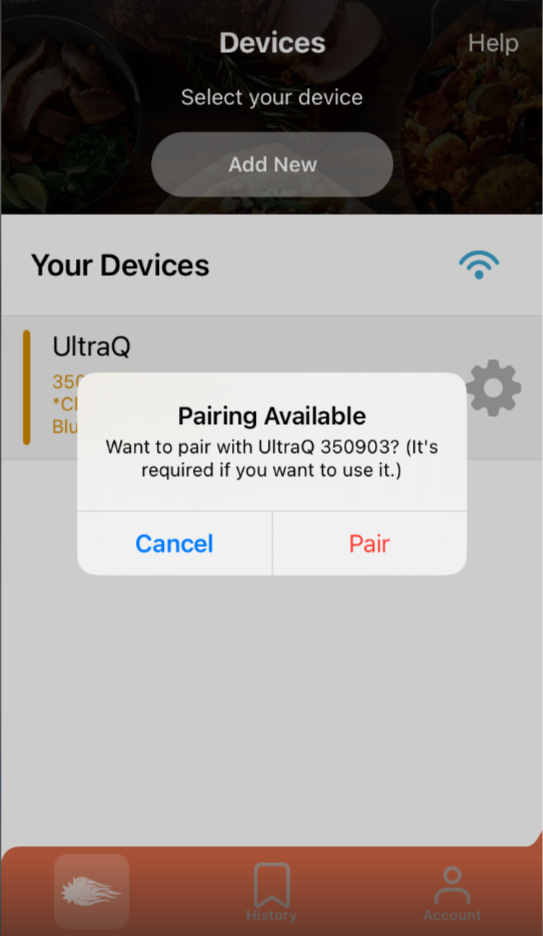
- The app will tell you that Pairing is Available (see screenshot below)
- Select Pair
- If your WiFi has already been configured, the app will connect to your home WiFi network
- The app will say Cloud: Ready and Bluetooth: Ready
- If you have not yet set up WiFi
- You will have a blue button under your UltraQ Device that says Setup WiFi
- Select it, then select your home WiFi network
- Enter the password for your 2.4Ghz WiFi network
- The app will then read Cloud: Ready and Bluetooth: Ready
- You can then tap on you devices name in the app to view and control your cook settings.
*Note: DynaQ setup ends with pairing to Bluetooth.
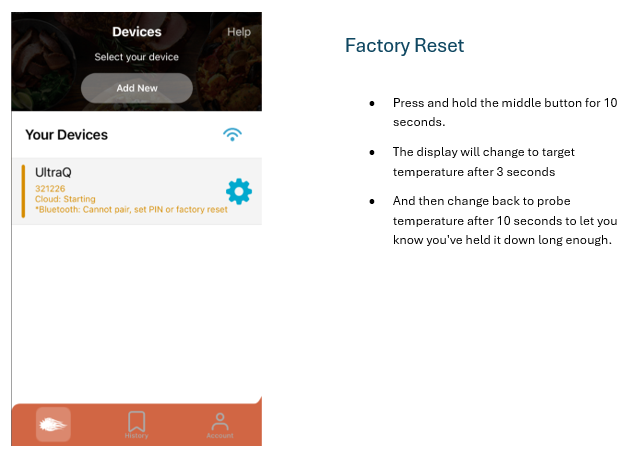
If you see the following screen below when plugging up your UltraQ or DynaQ. A factory reset is required to re-pair your device to the mobile app. Please note the UltraQ/DynaQ can only connect to one bluetooth at a time. You will need to re-pair it to use it with an alternate smart device.
For additional settings instructions, click on the article below:
Was this article helpful?
That’s Great!
Thank you for your feedback
Sorry! We couldn't be helpful
Thank you for your feedback
Feedback sent
We appreciate your effort and will try to fix the article