The steps below will walk you through how to enable the Bluetooth pairing feature with approved BBQ Guru Bluetooth Wireless Probes.
Steps:
Make sure your BBQ Guru Bluetooth Wireless Probe is fully charged.
Plug your UltraQ into power.
Open the BBQ Guru mobile app and confirm the device status shows Bluetooth: Ready.
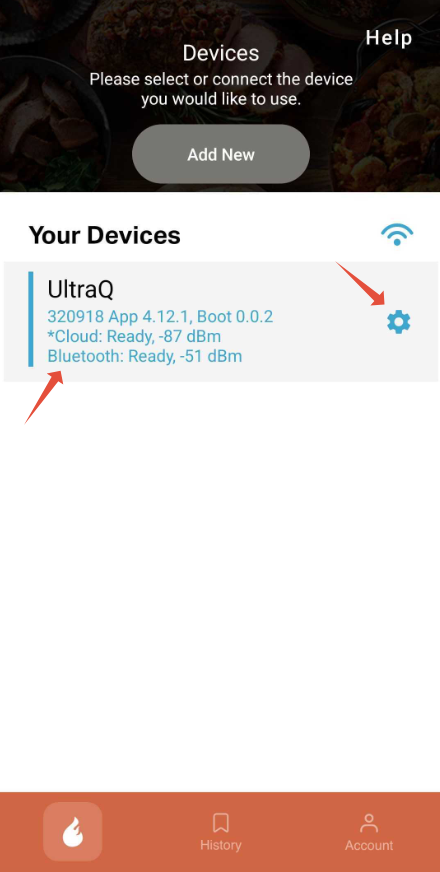
Select the blue Settings Gear to the right of your UltraQ.
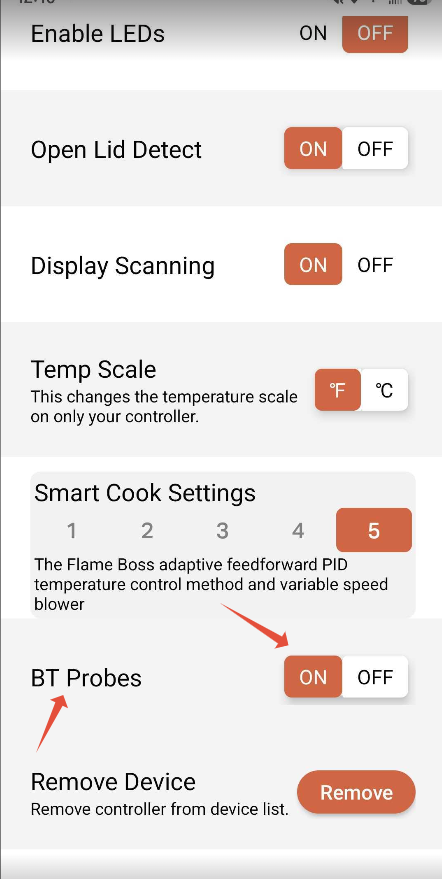
Locate the BT Probes setting.
Toggle the setting On.
Return to the cook settings page in the BBQ Guru mobile app.
The Bluetooth probe will automatically populate the next available meat probe slot.
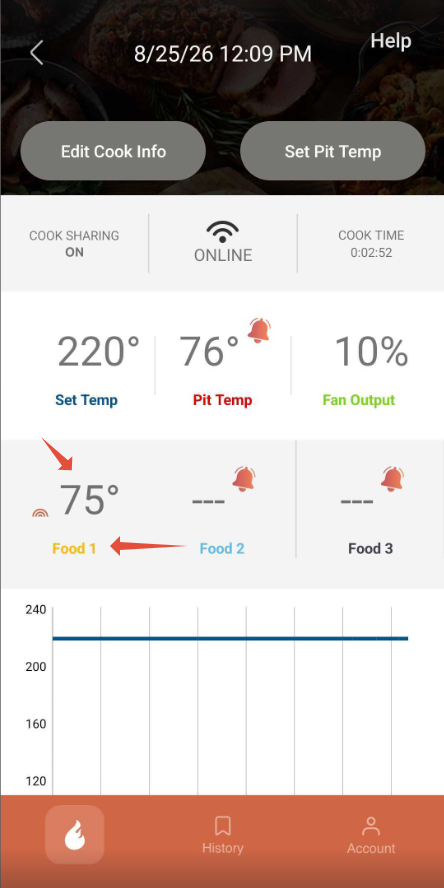
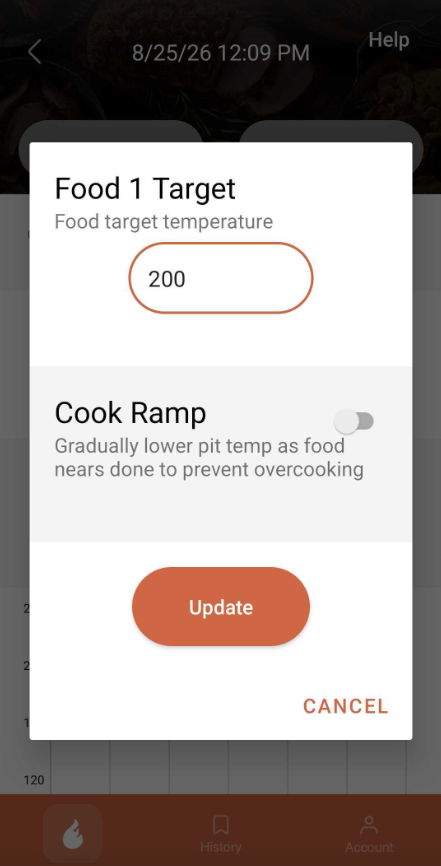
Tap the temperature value to configure Meat Alerts.
Tap the Bluetooth probe name to:
Edit the probe name
Reset the Bluetooth probe
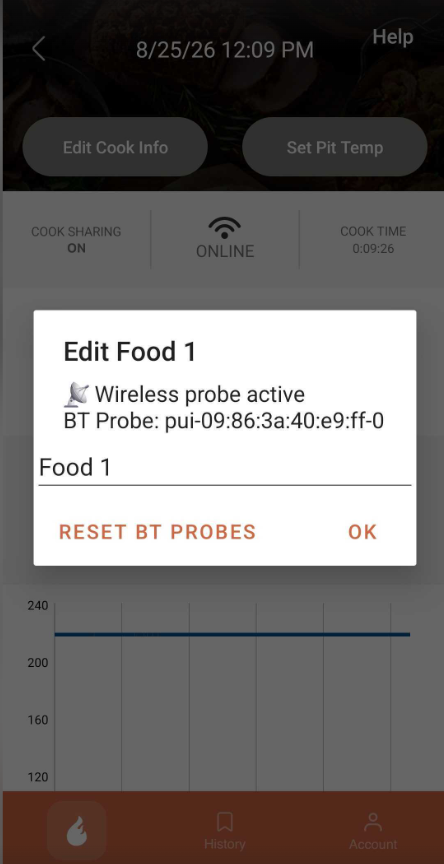
Note: Resetting the Bluetooth probe will unpair it from your UltraQ and allow it to be paired with another Bluetooth-enabled BBQ Guru device.
When you are done using the Bluetooth probe, simply toggle BT Probes Off in the More Settings menu.
Please let us know if you have any questions or need further assistance.
Below are additional articles that may help.
BBQ Guru Mobile App Settings Article
Was this article helpful?
That’s Great!
Thank you for your feedback
Sorry! We couldn't be helpful
Thank you for your feedback
Feedback sent
We appreciate your effort and will try to fix the article